When looking at your line stats you cant just rely on one particular aspect and you have to look at all of the figures to get an overall picture of how your line is performing.
The site contains information about what the important figures such as attenuation and SNR Margin mean and also an overview of line stat figures you may see and an explanation of line stat errors.
It can take a while to understand and be able to "read" router linestats, so if you are having difficulties or wish to ask any further questions, please feel free to post them on the forum.
Click on the relevant link to reveal how to get your stats.

|
|
2 Wire Router (BT Business Hub)
|

|
|
3com Routers
From the web interface http://192.168.1.1
Click on Status and Logs at the bottom left of the page,
then choose ADSL Status tab at the top.
Default username = admin. Password = admin
Thanks to E7er for the info
|
|
|
Belkin F5D7630
|
|
|
Belkin F5D7632
Early versions
Telnet to the router IP address (or click --> 192.168.2.1 )
Logon with "admin" and your password.
at the prompt type: port a1 counters
or : port a1 show
Later versions
Firmware v4.01.09 onwards doesn't accept telnet connections, but it does support the hidden page http://192.168.2.1/adsl_status_main.stm or http://192.168.2.1/adsl_status.stm
To view stats, log in to the web interface of the router in the normal way, then go to the above address, where the stats are displayed.
More info on belkin hidden pages
Important info for F5D7632 users on DSL Max
Some maxdsl users have reported problems with the F5D7632-4 . Belkin have now released new firmware which can be downloaded from here
|
|
|
Belkin F5D7633
|

|
|
Belkin F5D8631-4
|

|
|
Belkin G+ MIMO (F5D9630)
|
|
|
Billion BiPAC 5200 Series
From the web interface http://192.168.1.254
Default username = admin, password = admin
The stats are at the bottom of the page in the ADSL section
How to tell if the connection is interleaved
Open a command line window and type:
telnet 192.168.1.254
Enter the admin password when asked.
You will see a prompt which says 'router>'. Type the following:
wan adsl chandata
The response will be similar to this:
router> wan adsl chandata
near-end interleaved channel bit rate: 6368 kbps
near-end fast channel bit rate: 0 kbps
far-end interleaved channel bit rate: 448 kbps
far-end fast channel bit rate: 0 kbps
from which you can see that this connection is interleaved.
Type exit to close the telnet session.
Thanks to roseway for this info
|
|
|
Billion BiPAC 7300 Series
From the web interface http://192.168.1.254
Configuration >
WAN >
ADSL from the left menu
Default username = admin, password = admin
|
|
|
Binatone ADSL 500 / 1000 / 2000
|

|
|
BT 1800HG
|

|
|
BT Home Hub
|
|
|
BT HomeHub 3
From http://192.168.1.254
Settings ->
Advanced Settings >
Broadband >
Connection >
Click "Show Details" Button at the bottom
You can also try the direct link
http://192.168.1.254/index.cgi?active_page=9116
Note 1. If this is the 1st time you have been to the Hub manager you will have to change & set your admin password.
Note 2. This method does not work for BT Infinity (Fibre) as it is the Openreach modem that controls your broadband connection details.
|

|
|
BT HomeHub 4
Unfortunately the HH4 doesn't offer any linestats via the interface other than connection speed.
http://bthomehub.home admin password is on the card on the back of the hub.
From the top Menu > Troubleshooting
> Helpdesk
> Bandwidth
You may be able to gain a little more information from the event log, such as the SNR Margin, shortly after a resync.
Troubleshooting >
Event Log >
Category 'WAN'
|

|
|
BT HomeHub 5
http://bthomehub.home
From the top Menu
> Troubleshooting
> Helpdesk
Default admin password is on the card on the back of the hub.
If this is the 1st time you have been to the Hub manager you will have to change & set your admin password.
|
|
|
BT Openreach FTTC modems
BT Openreach are currently supplying 2 different modems for VDSL(2) FTTC services.
Unfortunately both the Huawei and ECI models are locked and there is no 'out of the box' solution to get line stats for your FTTC connection.
It is possible to unlock the Openreach branded Huawei HG612 .
See Unlocking the Huawei HG612 for more information.
Whilst it is not impossible to hack the ECI modem, this does involve a much more complicated procedure - which certainly isn't for the faint hearted.
For more information see discussions on the forum.
|

|
|
BT Voyager 100
Double click the system tray icon to open the Options Menu.
Choose the "Status" option to open a new window which should show you your data rate.
You may also see some coloured circles which show information about your line status.
Put your mouse cursor over this window, and very quickly click your left mouse button and right mouse button 3 times ie: left, right, left, right, left, right.
Hopefully some extra tabs should now appear that show the advanced information.
Click the Advanced Button.
Note: The latest firmware version with the new interface should be able to access the advanced information by following the instructions for the Voyager 105 below.
BT Voyager Modem High Speed Patch.
|

|
|
BT Voyager 105
Double click system tray icon which opens the voyager control panel.
Click on the "Status" Button.
When the small status panel appears,
Press control + F1 which enables the hidden features.
Note: You may need to have the latest firmware installed, which you can get from here.
Older firmware versions may have some sucess by trying the instructions for the V100 above.
*Thanks to drmac for the clarification
|
|
|
BT Voyager 205
Telnet to the router IP address
or click --> 192.168.1.1
Default Logon: "admin" Password: "admin".
at the $ prompt type: get dsl params
You are looking for:-
Local Line Atten(dB) & Local SNR Margin(dB)
Alternatively line stats can be found from the web interface
http://192.168.1.1
under Troubleshooting >
Advanced Diagnostics >
DSL Param
|

|
|
BT Voyager 210
From the web interface http://192.168.1.1
Click Advanced...|Status in the centre of the page
This opens up a new menu on the left hand side of the page.
Under Status
> Broadband Line
"More Information" gives you line error information stats
Default login: "Admin". Password: "Admin" or "Password"
|
|
|
BT Voyager 2100/ 2110/ 2091
From the web interface http://192.168.1.1
Click Advanced...|Status in the centre of the page
This opens up a new menu on the left hand side of the page.
Under Status
> Broadband Line
"More Information" gives you line error information stats
Default login: "Admin". Password: "Admin" or "Password"
|

|
|
Cisco (all ADSL router models)
Telnet to the router IP address
At the prompt type: show dsl interface atm 0
or: show dsl interface atm 1/0
(can also be abbreviated to: sh dsl int atm 0)
NB on Cisco 1400 series routers, the command is:
show controller atm 0
or
show controller atm 1/0
|
|
|
DLink 604+
From the web interface http://192.168.0.1
> Summary
> Line Condition
Default username "admin" password "admin".
|

|
|
DLink DSL 200 USB
Double click the system tray icon to open the Options Menu.
Choose the "Status" option to open a new window which should show you your data rate.
You may also see some coloured circles which show information about your line status.
Put your mouse cursor over this window, and very quickly click your left mouse button and right mouse button 3 times ie: left, right, left, right, left, right.
Hopefully some extra tabs should now appear that show the advanced information.
Click the Advanced Button.
|
|
|
DLink DSL 300T
Telnet 192.168.1.1
From the prompt type:
cat /proc/avalanche/avsar_modem_stats
Default username login "root" password "admin".
|
|
|
DLink DSL 320T / 502T / 504T / 524T / 624T / G624
|
|
|
DLink DSL-2640B / 2740B
1. Go to http://192.168.1.1 in your browser
2. Log into the router (default, Username: admin password: admin)
3. From the Top Navigation, click the Status Button
4. From the Left Hand Menu, Select "Statistics".
5. Your line stats are displayed under the "ADSL Statistics" Section.
(Thanks to jid for these instructions).
|

|
|
DLink DSL-604T
From the web interface http://192.168.1.1
> "Status" Tab at the top
> "Modem Status" from the left Menu
Default username login "admin" password "admin".
|

|
|
Draytech Vigor 2600 / 2800
From the web interface http://192.168.1.1
> OnLine Status
You can also telnet into the CLI to get a fair bit more information.
telnet://192.168.1.1
The required command is:
> show adsl
Default username "admin", the password is left blank.
|
|
|
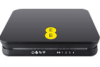
EE Brightbox
From http://192.168.1.1
Advanced Setup >
System >
ADSL Status
Default Username = admin
Password is on a sticker underneath the router.
|

|
|
Fujitsu FDX310
Double click the system tray icon to open the Options Menu.
Choose the "Status" option to open a new window which should show you your data rate.
You may also see some coloured circles which show information about your line status.
Put your mouse cursor over this window, and very quickly click your left mouse button and right mouse button 3 times ie: left, right, left, right, left, right.
Hopefully some extra tabs should now appear that show the advanced information.
Click the Advanced Button.
|
|
|
Huawei EchoLife HG612
From http://192.168.1.1
Status >
WAN >
xDSL Tab
Default Username & Password = admin
Advanced stats can be obtained by telnetting into the Busybox shell
ATP>sh
# xdslcmd info --pbParams
See also HG612 modemstats
Note: BT Openreach Fibre (Infinity/FTTC) Modems are locked by default.
To obtain linestats for a Openreach Huawei HG612 you will need to unlock your HG612
|

|
|
Huawei SmartAX MT882
Browse to http://192.168.1.1
This will open the web configuration manager.
Your line stats can be found on the Summary page.
Default username = admin Password = admin
More information on the Huawei SmartAX MT882
|

|
|
Linksys AG-241
|

|
|
Linksys WAG 160N
|

|
|
Linksys WAG 354G
|
|
|
Linksys WAG 54G2
|
|
|
Linksys WAG-54G
v2 of this router.
From the web interface http://192.168.1.1
> Status
> DSL Connection
Default username and password are "admin".
v1
Previously it was assumed that only v2 of the WAG-54G could provide line stats. However mdibb has found out they can be accessed via a hidden page:
http://192.168.x.x/ADSLCStatus.htm
|

|
|
Linksys WAG-54GS
|
|
|
Netgear DG814
Unfortunately this router is unable to provide any linestats. :(
|
|
|
Netgear DG834/ DG834G
You need to have firmware at least v 1.05.
From the web interface http://192.168.0.1
> Router Status
> "Show Statistics" Button
alternatively click this link --> Show Statistics.
Default username = admin, password = password
Notes on the DG834(G).
v1 and v2 are based on the TI (Texas Instruments) AR7 ADSL chipset.
v3 is based on a different TI AR7 chipset and has different firmware.
v4 has a broadcom chipset (BCM6348 V0.7). As such firware versions are also different.
v5 uses a Conexant chipset (CX94610).
New firmware released Feb 2007. - Bug fixes in DG834 and DG834G Release Version 3.01.31_UK/3.01.32 software, which cures the frequent drop outs. More info.
Netgear owners may also be interested in a nice little tool called RouterStats for monitoring their SNR Margin.
How to Check for interleaving
|
|
|
Netgear DG834GT / DG834PN/DG834N
|
|
|
O2 Wireless Router
|

|
|
Orange Livebox
|
New Sagem Livebox (Aug 08)
From the web interface http://192.168.1.1/
Click the link at the bottom "Access to the configuration pages."
Click on "System Information"
Default username = admin, password = admin
L.E.D. marked @ flashes rapidly (3-4 times a sec) when powered up.
Sync is indicated by a slower orange flash 1-2 times a sec and goes green once connected to the ISP.
|
 |
Sagem F@st 3202
From the web interface http://192.168.1.1/
Click in the Statistics menu, then select
the ADSL statistics submenu from the
drop-down list.
Default username = admin, password = admin
pdf user manual
Inventel version
http://192.168.1.1/
Click Access to the configuration pages, then select the
System Information option.
Default username = admin, password = admin
|
|
|
Origo 8100 / 8400
A conexant based router
From the web interface http://10.0.0.2
> ADSL Line Status
Default username = "admin".
Password can vary but try epicrouter or leave blank
|
|
|
Plexus WBR-T2
Plexus WBR-T2 V 0.2 may also have been sold as
ebuyer Extra Value Wireless-G ADSL2+ Modem Router
This router is a rebadged Tenda TWL548D - see relevant link below for more info.
|
|
|
Plusnet Hub One
Limited stats are available:
From the web interface http://192.168.1.254
Click Troubleshooting
> Help Desk
Username: admin
Password: See sticker on bottom of the Hub One
Plusnet line speed can be obtained from here.
|

|
|
Safecom
Under the hood its a origo/conexant based router.
From the web interface http://10.0.0.2
> ADSL Line Status
Default username = "admin".
Password can vary but try epicrouter or leave blank
|

|
|
Sagem F@st 800-840
The "official" instructions are:-
1. Click on the Windows "Start" button - this will then present you with the Start Menu.
2. Select "Programs" - you will be presented with the list of programs on your computer, select "‘Sagem F@0st 800-840" and then from the sub-menu that appears, select "DSLMON".
3. This will bring up a small screen with the DSL status showing "transmit" and "receive" rates.
4. While this screen is visible, on your keyboard hold down the "‘Alt" key and then press the letter "d".
Current attenuation is shown in the "Attenuation" field, current signal-to-noise is shown in the "Margin" field.
The following information is available:-
~ Basic stats showing speed along with downstream attenuation and margin in top box.
~ Advanced tab with error counters and margin of both upstrea and downstream.
~ Bin plot showing bits allocated to each frequency band. You have to press Reload to get the graph and it takes a while to arrive, so be patient
~ SNR plot showing the margin in each frequency band.
(Images kindly provided by Yarwell.)
You may not be able to access the modem stats because the diagnostics software has not been installed.
If this is the case then you will need to re-install the drivers, - to do this follow the instructions below which have kindly been provided by Yarwell.
Install the diagnostic Tools (DSLMon)
If they are not enabled, a re-install is called for.
First remove the USB modem drivers using the Start menu sagem F@st 800-840 entry Uninstall.
Unplug the modem then make a copy of the files off the drivers CD - I found you only need the files in the root directory, leave the folders behind (mainly Acrobat in 10 languages). Put them on a memory stick or in a folder on your hard drive.
Next edit the file SETUP.INI with Notepad, look for the entry :-
;InstallDSLTest is a flag for installing the DSL test software.
;1: Install DSLTest
;0: does not Install DSLTest (Default)
InstallDSLTest=0 <
and change the last 0 to a 1.
Save the file and then run setup.exe from the same folder to install the drivers with the diagnostics. Now Alt+D will pop up a window.
|
|
|
Siemens Gigaset SE587
From the web interface http://192.168.1.1
> Click on Status from the top menu.
> Select DSL Status from the left menu.
Default username = admin. Password = admin
|

|
|
Sky Hub
|
|
|
Sky Router
Sky Router Info
Default sky login- username= admin, password= sky
http://192.168.0.1
| v1 - Netgear DG834GT |
 |
|
> Router Status
> "Show Statistics" Button
Sky Netgear DG834GT Utility
|
| v2a - Sagem F@st 2504 |
 |
|
Opening page is Maintenance > Router Status
At the Bottom of the Page - Click 
|
| v2b - Netgear DG934G |
|
|
Opening page is Maintenance > Router Status
At the Bottom of the Page - Click
|
| v3 - Sagem F@st 2504n |
 |
|
Opening page is Maintenance > Router Status
At the Bottom of the Page - Click
|
|
|
|
Solwise SAR110
Telnet to the router IP address
or click --> 192.168.7.1
Logon with "DSL" and your password (default = admin).
at the $ prompt type: get dsl params
You are looking for:-
Local Line Atten(dB) & Local SNR Margin(dB)
Alternatively line stats can be found in the web interface under WAN > DSL > "DSL Param"
|
|
|
Solwise SAR130
Telnet to the router IP address
or click --> 192.168.7.1
Logon with "DSL" and your password (default = admin).
at the $ prompt type: get dsl params
You are looking for:-
Local Line Atten(dB) & Local SNR Margin(dB)
Alternatively line stats can be found in the web interface under WAN > DSL > "DSL Param"
|

|
|
Solwise SAR715
Telnet to the router's IP address
or click --> 192.168.7.1
Login to the router
(Default username and password are "admin".)
at the prompt type: adsl show perf
|

|
|
Speedtouch 330
You need to install "Dr SpeedTouch". Unfortunately Thomson/speedtouch seem to have removed their download link, but you should be able to install it from the installation cd that came with your modem. DSLDepot have a copy available for download here
Install the program and run "Diagnostics".
Right Click the icon in your system tray >>
Advanced >>
"Write log to disk"
Now open the log file in IE (its in .xml format so you may have to use IE to open it).
You should now be able to see your line stats amongst a lot of other information.
Sometimes Dr ST may throw an error saying that its been unable to complete all checks but it should still output the linestats information that you need.
The stats you are looking for are:-
ReceiveAttenuation_dB=
ReceiveMargin_dB=
SendAttenuation_dB=
SendMargin_dB=
It is recommended that you close the program after you have finished as it can be quite resource hungry.
(Thank you to secret and banger for passing me the Dr Speedtouch link
Thanks also go to TriGGa who was one of the first to make this info available).
Important Information for users of the Speedtouch 330 on DSLMax
Some older versions may be set by default is set to a maximum speed of 4Mbps. To support the higher speeds you need to download and install new drivers available from Speedtouch.
Links:
UK_330_301_Win98-XP_driver (7/8/2008)
UK_330_41C_WinVista_Driver (7/8/2008)
|
|
|
Speedtouch 510v4 / 530
Telnet to the router IP address
or click --> 10.0.0.138
From the menu select
adsl >
info
|

|
|
Speedtouch Routers - Other
Speedtouch: 510v5, 510v6, 516, 536, 546, 576, 585, 608, 706, 716, 780
From the web interface try
http://192.168.1.254/cgi/b/dsl/dt/?ce=1&be=0&l0=1&l1=0
or
From the routers IP address which is usually http://192.168.1.254
Broadband Connection >
DSL Connection >
Details.
Default User Name = Administrator , Password = blank or Serial No from underneath the router
Note:-
Some of the above speedtouch routers may well have problems if you try changing the default password and it will appear to lock you out or give you and error message "HTTP/1.0 401 Authorization Required". In actual fact this is an authentication problem within IE7 - try using a different browser to change the password.
Thanks to Banger for the direct link
|
|
|
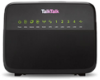
TalkTalk Router
From http://192.168.1.1
On the 'Summary' Page >
Click the Green 'DSL (Sync)' Button
Default Username & password = admin
|

|
|
Technicolor routers
Please note that Technicolor routers may also be known as Thomson.
ie the Thomson TG582n & Technicolor TG582n are the same router.
Most stats can be accessed from http://192.168.1.254.
Default user = admin or Administrator
Password = serial number on the underneath of the router.
Usually stats are located from the left hand menu:
Broadband Connection >
DSL Connection >
Then select "Details" from the top right
|
|
|
Technicolor TG582n
Also known as the Thomson TG582n.
Used by several ISPs such as Plusnet.
Default UserName = admin
Default Password = Serial Number from under the router
From the left hand menu:
Broadband Connection >
DSL Connection >
Then select "Details" from the top right.
Direct link
|
|
|
Tenda TWL548D
May also be sold as :
ebuyer Extra Value Wireless-G ADSL2+ Modem Router
or Plexus WBR-T2 V 0.2
Default IP http://192.168.0.1
Default username = admin Password = admin
Unfortunately there doesnt appear to be a way to get full stats from the web interface :(
The chipset is a Broadcom BCM6348SKFBG so there could be a possibility via the CLI.
Manufacturers website link
Product review link
|
|
|
Thomson Routers - Other
|
|
|
Thomson TG582n
|
|
|
Thomson TG585 v7
|
|
|
Thomson TG589vn
Default UserName = Administrator or admin
Default Password = (blank) or Serial Number from under the router
From the left hand menu:
Broadband Connection >
DSL Connection >
Then select "Details" from the top right.
Direct link
http://192.168.1.254/cgi/b/dsl/dt/?ce=1&be=0&l0=1&l1=0
|

|
|
TP-Link TD-W9980
http://192.168.1.1
Default Username = admin. Password = admin
From the side menu bar
> Status > DSL
|

|
|
X-Modem
From the web interface http://10.0.0.2
> Advanced
> ADSL Line Status
Default username = admin, password = password
|

|
|
Zoom 5506 PCI
Open Zoom PCI DSL Control Panel (in the Zoom PCI DSL folder)
Press Alt + P
Select the tab marked "Physical Layer Statistics" for noise margin and attenuation
Select the tab marked "General" for sync connection speeds
Thanks to ETEE for this info.
|

|
|
Zoom USB 5510A
From Start >>
Programs >>
Zoom USB DSL >>
Click Zoom USB DSL Autolog.
This will save a file to your desktop which contains your line stats.
|
|
|
Zoom X3 / X4 / X5
Another conexant based router.
From the web interface http://10.0.0.2
> ADSL Status
Default username = admin
(X3 & X4) Password = zoomadsl
(X5) Password = zoomvoip
|
|
|
ZyXEL Prestige 2602HW-61 & P-650R-31
This method should work with most of the ZyXEL Prestige Routers.
Telnet into the routers IP address >>
Choose Menu 24 (System Maintenace) >>
Option 8 (Command Interpreter Mode) >>
For each set of information required, use the relevant command.
~ DSL standard and sync rates
ras> wan adsl chandata
~ Upstream SNR Margin, attenuation and down output power
ras> wan adsl linedata far
~ Downstream SNR Margin, attenuation and up output power
ras> wan adsl linedata near
~ Line errors and errored seconds.
ras> wan adsl perfdata
~ Line data
ras> wan adsl diag
(Thanks to SteveBasford and Parish for this info).
|
|
|
ZyXEL Prestige 600 Series
http://192.168.1.1
> Diagnostic
> DSL Line
Up and downstream SNR Margins available
Default username = admin
Password = 1234
For more information you may need to telnet into the router as per the information above for the Prestige 650-R.
Thanks to steph for pointing out that there were some stats available from the web interface.
|
|
|
ZyXEL Prestige 630 USB
To access the advanced Features
Hold down Left Shift + Left Ctrl and then click on the ZYXEL logo.
Click the Advanced Button that appears to get a window showing your line stats.
|
|
|
Zyxel VMG8324/VMG8924
http://192.168.1.1
Default Username = admin. Password = 1234
From the menu at the bottom
> System Monitor
> xDSL Statistics
Works with DSLstats
|
| |
|
|
If you have a router which doesn't provide line stats, most routers do have the facility to provide SNMP information. In which case you may have some luck with MIB Browser.
ske1fr has provided a tutorial here how to use SNMP and MIB browser.
This term dates back to the early days of adsl, and particularly to 2003/2004 when your attenuation reading decided whether you could get adsl, or if BT would allow you to have a 1Mb or 2Mb connection.
Back then few people had routers and most people were supplied a speedtouch 330 which affectionately became known as "the Frog". This page originally started off as a permanent record on how to get your linestats from "the frog". Over the years it has grown to include most of the commonly used routers. Details are now held in a database and generated dynamically, but the name remains the same :)



 Rate your ISP